
Payments in Kazakhstan
Pay via Kaspi.kz
Fund your Paloma365 balance from the Kaspi payments catalog on your phone.
- Paloma365 account and top-up amount
- Funds credited to your balance after payment
- Pay with Kaspi Gold or a card in the app
Step by step in the app
Easiest from a phone with Kaspi.kz installed.
Payments section
Open Kaspi.kz → Payments.

Find Paloma365
Search paloma365 or Internet services → Paloma365.
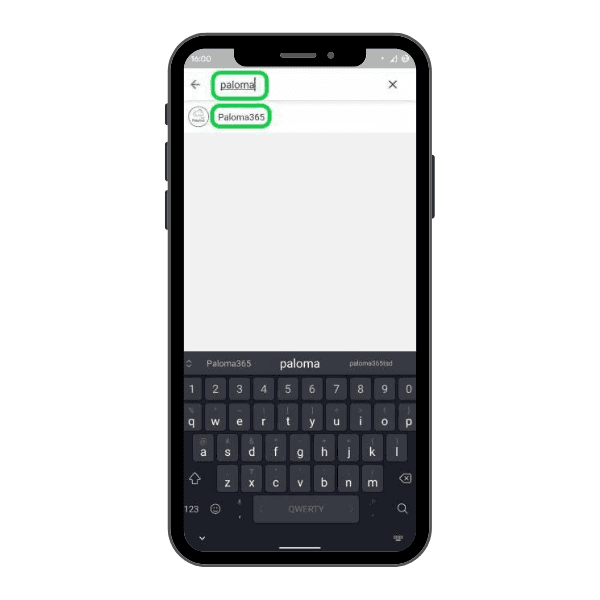
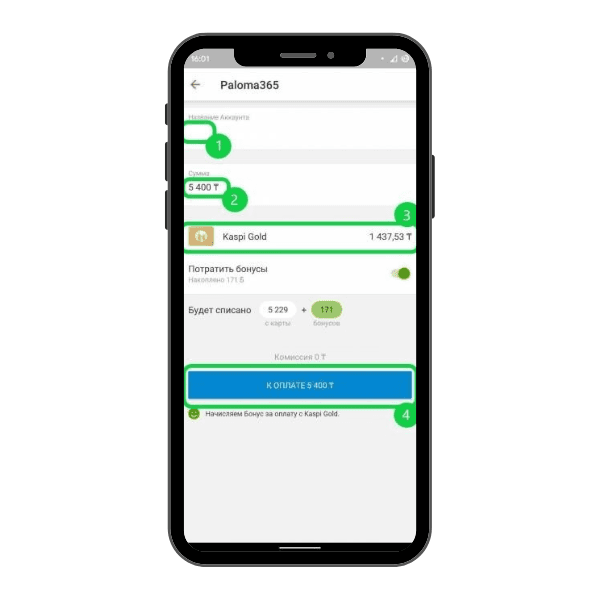
Top up
Enter your Paloma365 account, amount, and confirm.
Balance and subscription
How Kaspi top-up relates to your monthly invoice.
Balance credit
Funds appear on your Paloma365 balance after success.
Monthly invoice
Pay the month-end invoice from balance or top up early.
Auto debit
Enough balance may auto-pay the system invoice.
Note
Payment tips
A quick check before confirming in Kaspi reduces errors and speeds crediting.
- UI changes—search Paloma365 first
- Use the correct organization account
- Save the success screen until credited
Separate module
Kaspi shop and Paloma365
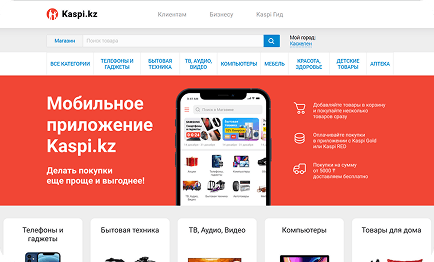
Selling on the Kaspi marketplace is a separate integration—stock, prices, and orders sync with Paloma365. It is not the same as paying your subscription via Payments.
- Stock
- Prices
- Orders
Paying your subscription via Payments and selling on Kaspi are different flows. For the marketplace, enable the Kaspi shop module.
Alternatives
Other payment methods
If Kaspi is inconvenient now, pick another channel.
All channels top up the same Paloma365 balance—subscriptions and invoices are paid from your account.