
Pay by bank card
Pay Paloma365 invoices in a secure processing window—card data is not stored on paloma365.com.
After payment
What happens in Paloma365 and where card data is stored.
System confirmation
Invoice status and balance update after a successful payment.
Data security
Full card numbers are not stored on Paloma365 servers.
Two support lines
Payment issues—processing; plans and access—Paloma365.
How to pay by card
Three steps from invoice to confirmed payment.
Invoice in Paloma365
Open the invoice in your account and choose card payment.
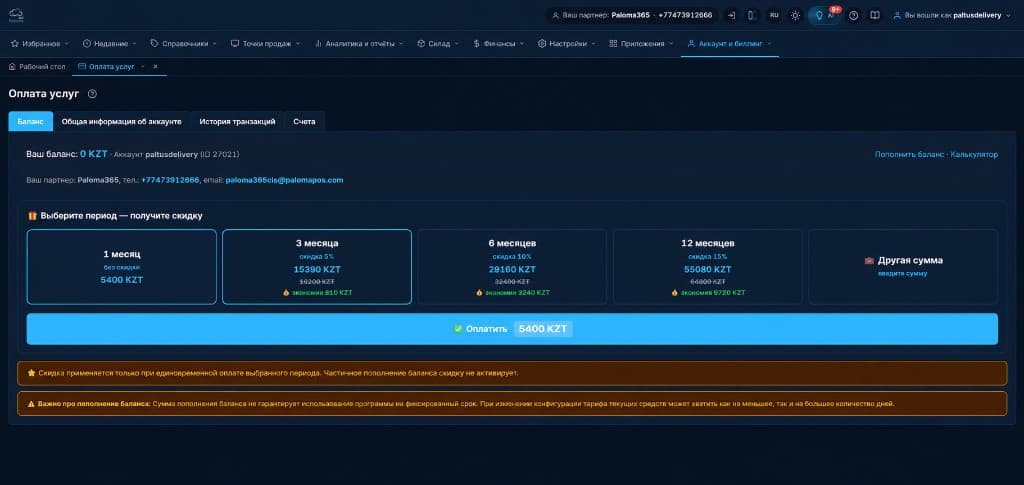
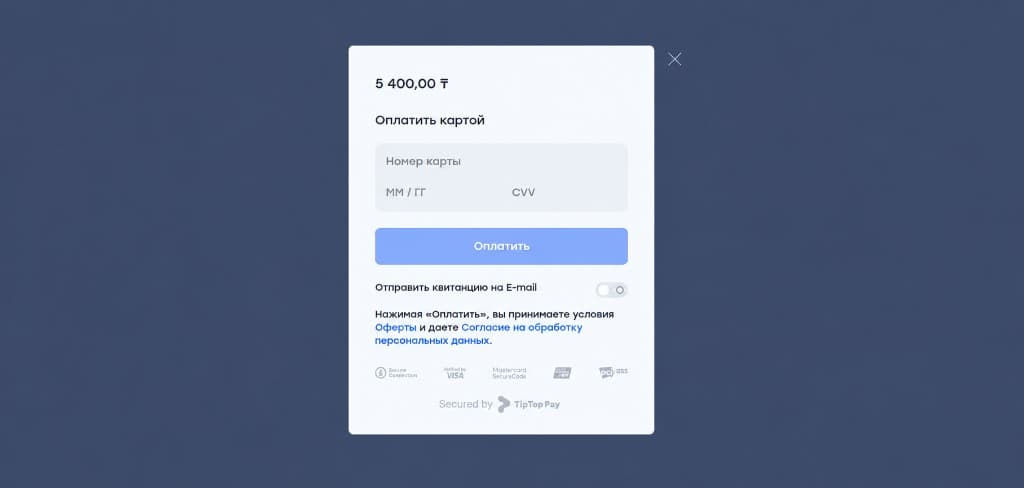
Processing window
TipTop Pay opens—enter card details only there.
Confirmation
Complete 3-D Secure if required and wait for success.
Processing and cards
Visa and MasterCard are accepted. Click Pay on the invoice to open the secure TipTop Pay window.
3-D Secure may be required—your bank will prompt for confirmation in the app or via SMS.
Payment data handling meets PCI DSS requirements over SSL. Full card details are not stored on Paloma365 servers.
CVV2 / CVC2
The three-digit security code on the back of the card. Never share it—enter it only in the processing form.
3-D Secure
If not enabled, confirmation often arrives by SMS. Ensure your bank allows online payments.
Before retrying
Common decline reasons
If payment fails, check the items below before retrying or calling your bank.
If everything looks correct but payment is still declined, contact your card-issuing bank.
Card not enabled for online payments
Insufficient funds or limit
Wrong card details
Bank decline
Alternatives
Other payment methods
If a card is temporarily unavailable, choose another channel.
All channels top up the same Paloma365 balance—subscriptions and invoices are paid from your account.